
|
Home » Documentation » Configuring a connection to a modem/phone Configuring a Connection of SMS Enabler to a Modem or Phone
First, install the USB modem drivers for your modem.1) Next, plug your modem into your computer. Open the Settings dialog box in SMS Enabler, and select the Connection page. In the Connect using list, select the name of your modem (or the COM port corresponding to your modem). If necessary, change the Baud rate and/or RTS/CTS flow control settings.
NOTES: 1) Many modern USB modems install the drivers automatically when you plug them in for the first time. Check your modem's manual.
Connecting via a hardware COM port (RS-232) Plug your modem into your computer using an RS-232 cable. Open SMS Enabler's Settings dialog box and select the Connection page. In the Connect using list, select the COM port to which your modem is connected. Change the Baud rate and/or RTS/CTS flow control settings if required. NOTE: Some modems require a particular baud rate and flow control mode. This information is usually mentioned in the modem's documentation. Connecting using a USB-to-COM port Adapter (Converter)
Install the drivers for your USB-to-COM port (RS-232) adapter, then plug the modem into your computer using the adapter. Open the Device Manager in Windows. In the Ports section, find the serial (COM) port name that is assigned to the virtual COM port created for the adapter. NOTE: Some modems require a particular baud rate and flow control mode. This information is usually mentioned in the modem's documentation. Connecting via USB If your GSM modem can be connected via a USB port to your PC directly (i.e. without a USB-to-COM port Adapter), then follow the instructions on Connecting to a USB modem.
Currently, smartphones (Android, iPhone) are not supported.
Many feature phones can be used as GSM/3G modems, which allows using them with SMS Enabler. If you have a Nokia feature phone manufactured in the 2000s or in the first half of the 2010s, use this method for connecting it with SMS Enabler. For other feature phones read the following instructions: Connecting to a phone via USB
Connecting to a phone via Bluetooth
Connecting to Nokia phones To use SMS Enabler with most NOKIA feature phones manufactured in the 2000s or in the first half of 2010s, you must have Nokia PC Suite installed on your PC. (You can use Nokia OVI Suite as well.) You can download Nokia PC Suite here.
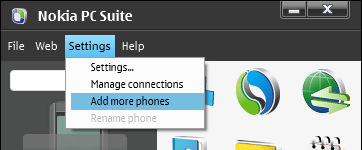
1) Start by adding your phone within PC Suite. To do so, open PC Suite, and from its main menu, select Settings->Add more phones.... Then follow the instructions provided.
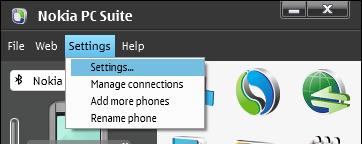
2) After adding your phone, enable notifications for incoming messages within PC Suite. To do so, select Settings->Settings... from PC Suite's main menu.
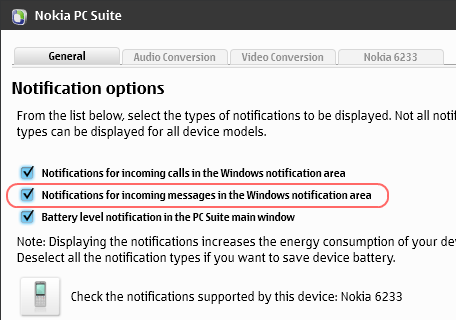
3) In the dialog box opened, select the General tab page, and enable Notifications for incoming messages in the Windows notification area.
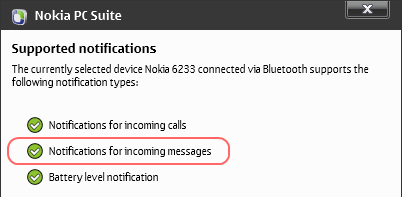
4) Verify if notifications for incoming messages are supported by your phone by clicking Check notifications supported by this device: <your phone name>.
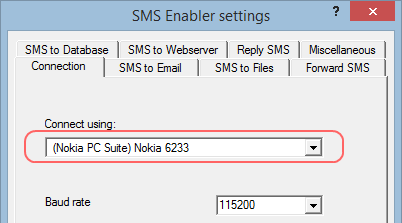
5) After adding your phone and enabling message notifications, open SMS Enabler's Settings dialog box and select the Connection page. Select your phone in the Connect using list. The phone will have the same name as in PC Suite, but prefixed with "(Nokia PC Suite)". For example, if your phone is labeled "Nokia 6233" in PC Suite, it will be named "(Nokia PC Suite) Nokia 6233" in the Connect using list. NOTE: Some older Nokia phones, such as the Nokia 6230 and 6610, can be used with SMS Enabler without having Nokia PC Suite installed. These phones can be connected using the same methods as non-Nokia phones/modems. |


| Copyright © 2006-2023 Alexander Smirnov. All rights reserved. |